Want to track prices or monitor product trends on Amazon without wasting hours copying data manually? Automating data extraction into Excel could save you time and provide more accurate, up-to-date insights.
Amazon offers a vast resource of product data useful for competitive analysis, market research, and pricing strategies. But to turn that raw web data into something useful, like a spreadsheet, you need to extract and parse it efficiently.
This guide will show you how to extract data from Amazon to Excel or, to be more specific, how to parse scraped data in the CSV format that Excel can read.
Why Amazon Data is Valuable for Business
Before we start scraping Amazon, it’s helpful to understand what makes its public data so useful
- Competitor Analysis: See how competitors price their products, run promotions, and optimize listings.
- Market Research: Track product popularity and spot rising trends.
- Price Optimization: Monitor price fluctuations and apply dynamic pricing models.
- Product Development: Analyze reviews and ratings for feature ideas or pain points.
Many businesses also use Amazon data for forecasting, vendor selection, and inventory management.
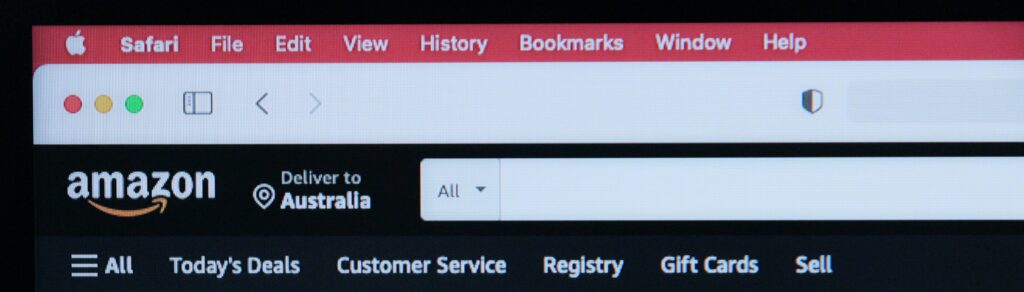
How to Get Amazon Data Extracted into Excel
Various strategies exist to facilitate the data scraping process, but when in doubt, the most painless is usually the best. Excel can read several file formats, the most common being CSV, so let’s focus on that.
Custom Scraper vs API
While this guide will teach you how to extract data from Amazon to Excel, we also want to cover two different approaches to scraping that data in the first place.
- The first, which we mostly focus on here, is to build your own custom scraper. This way, you have full control over the fields you extract, but also need to manage proxies, captchas, and scraper maintenance.
- The alternative is to use our Web Scraping API, which simplifies the process by handling the heavy lifting and returning raw HTML. However, you still need to format the data yourself, so if you take this approach, jump to our section on parsing Amazon data.

And in both cases, you’ll need to know which pages you need to scrape. Amazon is a huge website, so a custom Amazon web crawler will help filter down to the specific products or categories you’re after.
Select the option that works best based on your technical resources and scraping frequency.
Step 1. Install the Required Python Libraries
First, we will need a way to scrape and parse the data. Python is one of the most commonly used programming methods for web scraping, and can work very well, so we’ll use this moving forward.
pip install requests beautifulsoup4 pandasThis part is easy. We’re installing the following libraries to help us extract the Amazon data we’re after:
requests– Fetches webpage data.BeautifulSoup– Parses HTML.pandas– Structures data and exports to CSV/Excel.
Step 2. Send a GET Request
The requests library fetches the raw HTML content from an Amazon page. At this stage, you cannot filter or select specific data directly; Amazon delivers the full page HTML in response to your request. You will later use parsing techniques to selectively extract only the relevant product data you care about.
import requests

from bs4 import BeautifulSoup

url = "https://www.amazon.com/s?k=desktop"
headers = {"User-Agent": "Mozilla/5.0"}
response = requests.get(url, headers=headers)
If you’re using Rayobyte’s Web Scraping API, the process is similar. It returns the raw HTML of any given Amazon URL, allowing you to parse and target your desired data fields in the next steps.
Step 3. Parse the HTML
Once you receive the raw HTML response, you need to parse it using BeautifulSoup. This converts the raw HTML text into a structured format called a “soup” object, which allows you to navigate and search the HTML tree more easily.
soup = BeautifulSoup(response.content, "html.parser")With the soup object, you can now use methods like find_all() or select() to target and extract only the meaningful data for your project.
Step 4. Extract the Data
After parsing the HTML, you’ll extract specific product data by targeting particular HTML elements. This step converts the nested, messy HTML into structured Python data formats like lists or dictionaries.
For example, if you want to extract product titles, you would locate the corresponding HTML tags and classes and pull out the clean text:
titles = [title.get_text(strip=True) for title in soup.find_all("h2")]You can repeat this process for other data points, such as prices, reviews, and ratings, by identifying their respective HTML elements and extracting their text values.
5. Export Data to CSV
Once you have your data in Python, you can easily convert it to CSV using pandas:
import pandas as pd

# Example for product titles
data = {'Product Title': titles}
df = pd.DataFrame(data)
df.to_csv('amazon_products.csv', index=False)
This creates a clean CSV file you can open with Excel. For multiple fields (like price, rating, etc.), simply expand your dictionary:
data = {
'Product Title': titles,
'Price': prices,
'Rating': ratings,
}
df = pd.DataFrame(data)
df.to_csv('amazon_data.csv', index=False)
Choosing What Amazon Data to Scrape
Depending on your goals, you can scrape many fields from product listings. Here’s a breakdown of common data points and how to extract them:
- Product Title: Usually in
<h2>or<span>tags with classes likea-size-medium. - ASIN: Embedded in the product URL or in the
data-asinattribute of product containers. - Brand Name: Found under a
<span>with classa-size-base-plusor in the product details section. - Category/Subcategory: Located in the breadcrumb navigation, under
nav-breadcrumb. - Product Description: Found on product pages in
<div id="productDescription">. - Current Price: Extracted from
<span class="a-offscreen">. - List Price / Discount: Look for both the
a-text-priceanda-priceclasses. - Number of Reviews: In a
<span>tag witha-size-basenear ratings. - Average Star Rating: Look for
aria-labelin<span class="a-icon-alt">. - Prime Eligibility: Check for the Prime logo, commonly under
<i class="a-icon a-icon-prime">. - Shipping Details: Found in sections like
a-row a-size-base a-color-secondary. - Availability Status: Text within
<div id="availability">. - Image URLs: Contained within
<img>tags inside product listings.
Targeting these specific classes and attributes will help you collect cleaner, more structured data.
Why You Should Regularly Update Your Amazon Data
Amazon listings change frequently. Prices, stock levels, and promotions are subject to change by the hour. That’s why you should:
- Schedule Periodic Scraping: Run your scraper daily, hourly, or at custom intervals.
- Track Competitor Changes: Monitor price drops or product launches.
- Adjust Quickly: React to market shifts in real time.
You can use Python schedulers, cron jobs, or third-party scraping platforms to automate recurring scraping.

For exports, you have two main options:
- Overwrite Mode: Replace previous files with each run. This is ideal for getting the latest snapshot of prices.
- Historical Mode: Append each run to a master CSV file with a timestamp column, building a historical record of price trends. Example:
data['Scrape Date'] = datetime.today().strftime('%Y-%m-%d')
df = pd.DataFrame(data)
df.to_csv('amazon_price_history.csv', mode='a', index=False, header=not
os.path.exists('amazon_price_history.csv'))
This way, you can analyze price fluctuations over time directly within Excel.
Start Scraping Amazon Easily with Rayobyte
Amazon has aggressive anti-bot protections. To scrape reliably, you’ll need high-quality proxies.
Rayobyte offers:
- Residential Proxies for reliable collection at volume.
- Web Scraping API to simplify the entire scraping process.
Whether you want a hands-on custom scraper or a fast API solution, Rayobyte helps you extract Amazon data safely and effectively.
The information in this article is presented solely for the education of the reader. All trademarks used in this publication are hereby acknowledged as the property of their respective owners.